
Support
Help, guides and notes.
Can’t find an answer? Write to info@mercuryproject.cz
Frequently asked
What happened to Macometr?
Macometr is now called SystemStory: the same app from the same company, Mercury Project. Your licence key, activated Macs, history and settings aren’t affected. Versions up to 1.27 still show the name Macometr.
SystemStory says my RAM is 80% used. Should I worry?
Not by itself. macOS keeps RAM busy on purpose - caching files, compressing idle memory - so a high “RAM used” is normal. Look at RAM pressure: if it stays Normal, your Mac has enough RAM for what you’re doing. If it’s Elevated or Critical for long stretches, the history shows when, and the list shows what was running.
Why don’t the app footprints add up to RAM used?
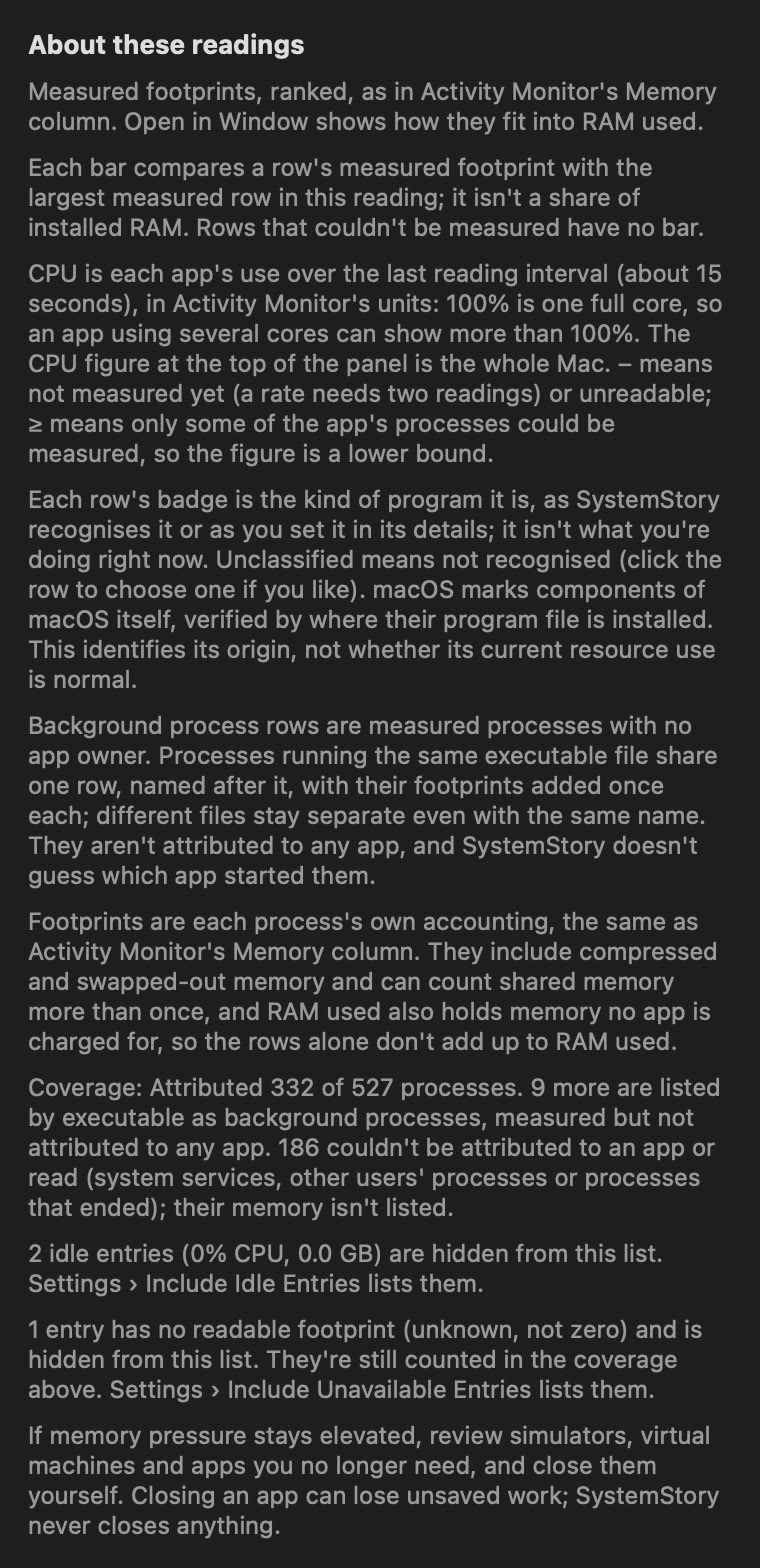
Each process reports its own footprint. Footprints include compressed memory and can count shared memory more than once, while RAM used also includes wired memory that belongs to macOS. SystemStory ranks footprints to show what’s big; it doesn’t pretend they sum to a total.
What is a “Background process” row?
A program that isn’t part of an app bundle - for example a Windows game running through CrossOver, or a command-line tool. Processes running the same program share one row. SystemStory doesn’t guess which app started them, so a game appears as itself, separate from CrossOver’s own row.
What does “partial” or “unavailable” mean?
Some processes belong to macOS or other users and can’t be read. “Partial” means only some of a row’s processes were measured. Rows with nothing readable are hidden by default; you can include them in Settings. The ? next to the list shows the exact coverage.
Can SystemStory free up RAM?
No, deliberately. “RAM cleaners” mostly push useful cache out and make the Mac slower afterwards. SystemStory shows what’s using RAM; if something should close, you close it, and Activity Monitor is one click away.
Does SystemStory show temperatures and fan speeds?
Yes, on supported Macs in the direct build. The panel shows the highest available chip-sensor reading beside macOS’s thermal state, in °C or °F. It’s a live sensor reading, not a CPU-only figure or a health rating.
Fan speeds are each fan’s current RPM, read only - SystemStory never changes them. Fanless Macs, such as MacBook Air, show no fan speeds. Availability depends on the hardware.
When temperature readings are available and usage history is enabled, the report includes their recorded average and highest sampled reading. Fan RPM is live only.
How much history does it keep, and where?
Up to 365 days, in SystemStory’s private container on your Mac. Recent days keep minute detail; older days are kept as exact daily totals. Deleting history in the history window removes it all.
Does SystemStory record which apps I use?
Only if you turn on app history. It then records RAM footprint and CPU time per app - not windows, documents, websites or screen time. Live background programs shown in the panel aren’t recorded.
Does it work on Intel Macs or older macOS versions?
No. SystemStory requires Apple silicon and macOS 26 or later.
Guides & glossary
- RAM pressure (memory pressure)
- macOS’s own measure of how hard it’s working to provide memory: Normal, Elevated (macOS calls it “warning”) or Critical. It’s the best single sign of whether your Mac needs more RAM for what you do.
- RAM used vs footprint
- RAM used is app memory plus wired, compressed and other memory, across the whole Mac, as Activity Monitor counts Memory Used. A footprint is one process’s own accounting of its memory. They answer different questions, so they aren’t added up.
- App, wired, compressed, other, cached
- App: memory apps and processes are using. Wired: kept in RAM by macOS. Compressed: app memory squeezed to save space - still in use. Other: purgeable app caches macOS can discard instantly, and memory macOS reserves at startup; counted as used. Cached: recently used files that macOS gives back when needed; not counted as used.
- Coverage in the RAM list
- Some processes can’t be read. SystemStory says how many processes it attributed to apps and how many it listed as background programs, marks partly measured rows “partial”, and hides rows with nothing readable unless you include them in Settings.
- Swap occupied vs swap activity
- Swap occupied is space used on disk, and it can stay high long after the moment that filled it. Swap activity is data actually moved in or out recently. A quiet few minutes says nothing about other times - that’s what history is for.
- History coverage
- SystemStory records only while it runs and the Mac is awake. Each figure says how much time it covers, and comparisons use each period’s own recorded time. Missing time is a gap, never zero.
- Sampling and detail
- Live readings refresh at the update interval set in SystemStory’s settings. History keeps minute detail for recent days and exact daily totals for older ones, for up to a year. CPU and GPU averages are the share of capacity in use while recorded, not CPU-time totals.
- Temperature and fans
- On supported Macs in the direct build: the highest available chip-sensor temperature, also kept in usage history, and each fan’s current RPM, live only. Fans are read, never controlled.
- Thermal state
- The state macOS reports: Nominal, Fair, Serious or Critical. It isn’t a temperature and doesn’t measure exact throttling.
The app’s own ? help for the RAM list
Changelog
Current version: 1.28 (28)
1.28 (28) · November 7, 2026
- Same app with a new name and icon: SystemStory 1.28. Your usage history, settings and licence stay as they are.
- After this update the app in your Applications folder keeps its current file name. It is the same SystemStory app.
- Only one copy runs at a time. If a second copy is opened, it says so and quits, so your history stays in one place.
- Reports, shared images and the Usage Advisor now carry the SystemStory name.
1.27 (27) · November 4, 2026
- The menu-bar panel, Usage Advisor and program details use macOS glass materials: a translucent backdrop with a protective tint, lighter rows and cards, and glass category controls. Layout, numbers and colours are unchanged.
- With Reduce Transparency on, these surfaces stay opaque; Increase Contrast keeps strong edges.
1.26 (26) · November 3, 2026
- The Usage Advisor is organised into clear sections, with charts for where your time went, memory pressure and each workflow’s sessions.
- Workflows follow the app you’re using while you’re at the Mac, plus measured heavy work, such as a build, that runs on its own. Earlier workflow labels came from CPU alone and aren’t shown.
- Usage history counts the web content processes of Safari, Mail and other apps as part of the app, as Activity Monitor does.
- A program’s details list its processes by the names macOS uses, and Find in Activity Monitor copies the name to search for. Windows opened from the menu bar come to the front.
1.25 (25) · November 2, 2026
- Utilities can be chosen as a program’s category; it never counts as a workflow.
1.24 (24) · November 2, 2026
- The app itself shows a Utilities badge instead of Unclassified; its own activity still never counts as a workflow.
- Google Chrome is one row again: its browser processes running from Chrome’s temporary copy are counted with Chrome.
1.23 (23) · November 2, 2026
- Apple’s own apps, such as Safari, Mail, Notes, Preview, Passwords and Siri, are shown as macOS, verified by Apple’s signature.
- Web content helpers are listed with the app they work for, such as Safari or Mail; otherwise as WebKit Web Content, Graphics or Networking.
- Search also finds the original process names.
1.0 (22) · November 2, 2026
- The menu-bar panel no longer covers the update window: Check for Updates…, scheduled update offers and update alerts appear in front.
1.0 (21) · November 2, 2026
- Usage Advisor: Your workflows recognises sustained kinds of work from measured activity and says whether RAM kept up during each one; the overall RAM answer for the whole period follows, with the day to review.
- Needs-attention notices for sustained CPU use and growing memory. Review opens that program’s details with what was observed.
- Click any program for its details: what it uses now, its processes, and an optional name and kind of work of your own. Category badges and filters in the list; macOS components are marked by where their program file is installed.
- A simpler What’s Using RAM and CPU? window: one list of every program, the RAM breakdown behind a disclosure, and room for full names.
- A compact Thermal line, a labelled Usage Advisor button, and the version and build in the panel.
- Licence checks now include a short description of the Mac (model, chip, memory, macOS and app version), so the licence owner can tell activated Macs apart.
- From 1.0 (17), update with Check for Updates…; your history, settings and licence stay.
1.0 (17) · November 2, 2026
- Updates for the direct download: Check for Updates… in the gear menu, with optional automatic checking and installing. Updates are signed and verified before they are installed.
- Coming from 1.0 (16)? Download this version once and replace the app; it can’t update itself.
1.0 (16) · November 1, 2026
- Direct download with a 7-day full-feature trial and one-time licence packs for 1, 3 or 10 Macs.
- Chip temperature and fan speeds on supported Macs.
1.0 (10) · October 29, 2026
- Up to a year of history, with 7-day, 30-day, 90-day, yearly and custom periods.
- Comparison with the preceding period when prior recorded data is available, with coverage.
- RAM used shown apart from memory pressure; RAM parts explained; recent swap activity.
- “What’s using memory” in the panel, with simulators and background programs grouped by program.
- Settings to include 0.0 GB and unavailable entries.
1.0 (9) · October 22, 2026
- Usage history with a 30-day report, optional app history, Copy Report and Share Report.
1.0 · October 2026
- Menu-bar CPU, GPU and RAM, per-core load, memory pressure and battery-drain notifications.
Roadmap
Available now Everything in the changelog above.
Planned A referral program, with direct sales. Rewards and terms will be confirmed before sign-up.
Get help
- Installing and updating
- See Download. From version 1.0 (17), use Check for Updates… in the gear menu; the updated app may keep the file name Macometr.app. Version 1.0 (16) can’t update itself: download the new version once, quit the old app, move it to the Trash, and move the new one to Applications. Your history, settings and licence stay.
- Activation and Macs
- Enter your key under gear menu, Licence…. Each pack works on that many Macs at a time; choose Release This Mac before moving to another Mac.
- Lost key or old Mac
- Use licence recovery with your purchase email. It can also release the licence from a lost Mac.
- Refund, withdrawal or complaint
- See the terms of sale. Write to us from your purchase email.
- Report a problem
- Write to info@mercuryproject.cz with your purchase email or order reference, the app and macOS versions, and what happened. Never send card details, passwords or your full licence key, and there’s no need to send your history. If more detail would help, we’ll ask, and you choose what to share (for example a Copy Report text).
Privacy
SystemStory measures your Mac on your Mac. Its history stays in the app’s private sandbox container. The app has no account and no analytics. Reports are copied or saved only when you choose to, with Copy Report or Share Report.
Workflows and app usage. Only while Record Usage History and Include app usage are on, recording isn’t paused and a trial or licence is active, SystemStory checks about every 15 seconds which app is in front and how many seconds have passed since your last keyboard, mouse or trackpad input. These observations are used briefly in memory to label each minute with a kind of work, such as Development or Everyday work, and are never written to history: only the derived minute labels and their sessions are stored on your Mac, for 31 days and then as daily totals for up to a year. SystemStory never reads your keystrokes, window titles, documents or web addresses, and never uploads any of this. Include app usage also keeps each app’s RAM and CPU totals with its name, on your Mac. Delete History removes all of it.
Licence checks. Apart from update checks (below), SystemStory connects only to our own licence server, at macometr.com or systemstory.app, and only for its licence: when you activate a key, about once a day to renew the activation, and when you release a Mac. It sends the licence key or activation, and a random installation ID created by SystemStory. From version 1.0 (18) it also sends a short description of the Mac (model, chip, memory, macOS and app version), so the licence owner can tell activated Macs apart in their records. It never sends your history, app names, Mac name, serial number or hardware ID. The trial needs no network, and an activated Mac keeps working offline for up to 37 days.
Update checks. From version 1.0 (17), the direct version can check our update list, at macometr.com or systemstory.app, if you allow it, about once a day, or when you choose Check for Updates…. A check is an ordinary web request for the update list (your IP address and the app version reach our server, like any web visit); it sends no licence key, installation ID, app names or history, and no system profile. Updates are signed and verified before they are installed.
Purchases. Stripe processes payment; we never see your card details. We keep your email address and order details from Stripe (pack and payment IDs) with your licence and its activations, and use your email address only to send your licence key and the recovery links you ask for. Emails are sent through our email provider, Resend. Licence keys are stored as hashes. A temporary encrypted copy, used to show and email your key, is removed after its 24-hour delivery window, and the email queue’s copy once the email is sent. Encrypted backups of these records are kept so licences can be restored.
Website analytics (optional). Only if you choose Accept in the analytics notice, this website uses Google Analytics to count page visits and clicks on Buy and Download buttons (with the pack size). Page addresses are sent without anything after the page name, and no email, licence key or payment details are ever sent. It sets Google Analytics cookies (_ga and _ga_…) on systemstory.app for up to 13 months. Google signals, ad personalization and advertising features are off. If you choose Reject, nothing is loaded from Google. You can change your choice at any time with Analytics settings at the bottom of every page; withdrawing removes those cookies. Licence, checkout and recovery pages are never measured, and the SystemStory app never uses analytics.
Website delivery. systemstory.app is delivered through Cloudflare, which handles visitors’ IP addresses and page requests, including the licence pages at that address, to deliver and protect the site.
Buy buttons open Stripe’s checkout page; the licence recovery page asks only for your purchase email. Like most web servers, ours keeps standard access logs (such as IP address, page and time) for security and operation. Email links open your own mail app.
Terms of sale
The full terms of sale (version 1; obchodní podmínky) cover the 7-day trial, one-time packs ($4.99 for 1 Mac, $9.99 for 3 Macs, $24.99 for 10 Macs), delivery and activation, moving a licence, updates, the 14-day right to withdraw, complaints and out-of-court dispute resolution. Seller: Mercury Project s.r.o., IČO 25087410.
Questions before or after buying, or a problem with a purchase: write to info@mercuryproject.cz from the email you used at checkout.